

Zoom Fatigue & Calendar Overload: 5 Practical Ways to Reclaim Your Workday
You finish one video call, check the clock, and realize you have another meeting starting in two minutes.
There is no time to stand up. No time to grab water. No time to think about what was just discussed.
So you join the next call, turn your camera on, and start over again.
By the afternoon, you may have spent hours in meetings without completing the work those meetings were supposed to support.
If this sounds familiar, the problem may not be that you need to “manage your time better.” Your calendar may be overloaded with too much synchronous work.
Video meetings can be mentally demanding for several reasons, including prolonged close-up eye contact, seeing your own image, reduced physical movement, and the effort involved in interpreting nonverbal signals through a screen. Stanford research has identified these factors as contributors to what is commonly called “Zoom fatigue.”
The good news is that you don't have to accept an exhausting calendar as part of modern work.
With a few practical changes, you can reduce zoom fatigue, protect focused work time, and still remain responsive to your team.
Why Video Meetings Can Leave You Exhausted
A video meeting isn't simply an in-person meeting moved onto a screen.
The experience changes how you communicate.
In a physical meeting, your attention naturally moves around the room. You may look at your notes, shift your posture, walk to another room, or briefly look away while thinking.
Video calls create a much more fixed environment.
You're often looking at multiple faces at once, monitoring your own appearance, staying within the camera frame, and trying to interpret expressions and reactions through a small screen.
Stanford communication researcher Jeremy Bailenson identified four major contributors to video-conference fatigue: excessive close-up eye contact, constantly seeing your own reflection, reduced mobility, and increased cognitive load from interpreting and producing nonverbal cues.
Research using the Zoom Exhaustion & Fatigue Scale has also found that the frequency and duration of video meetings are associated with greater fatigue.
So if your calendar is packed with back-to-back calls, feeling drained isn't necessarily a personal productivity failure.
Your meeting structure may be part of the problem.
5 Ways to Fix Meeting Overload at Work
The goal isn't to eliminate meetings completely.
Some conversations genuinely need real-time discussion.
The goal is to make sure every meeting earns its place on your calendar.
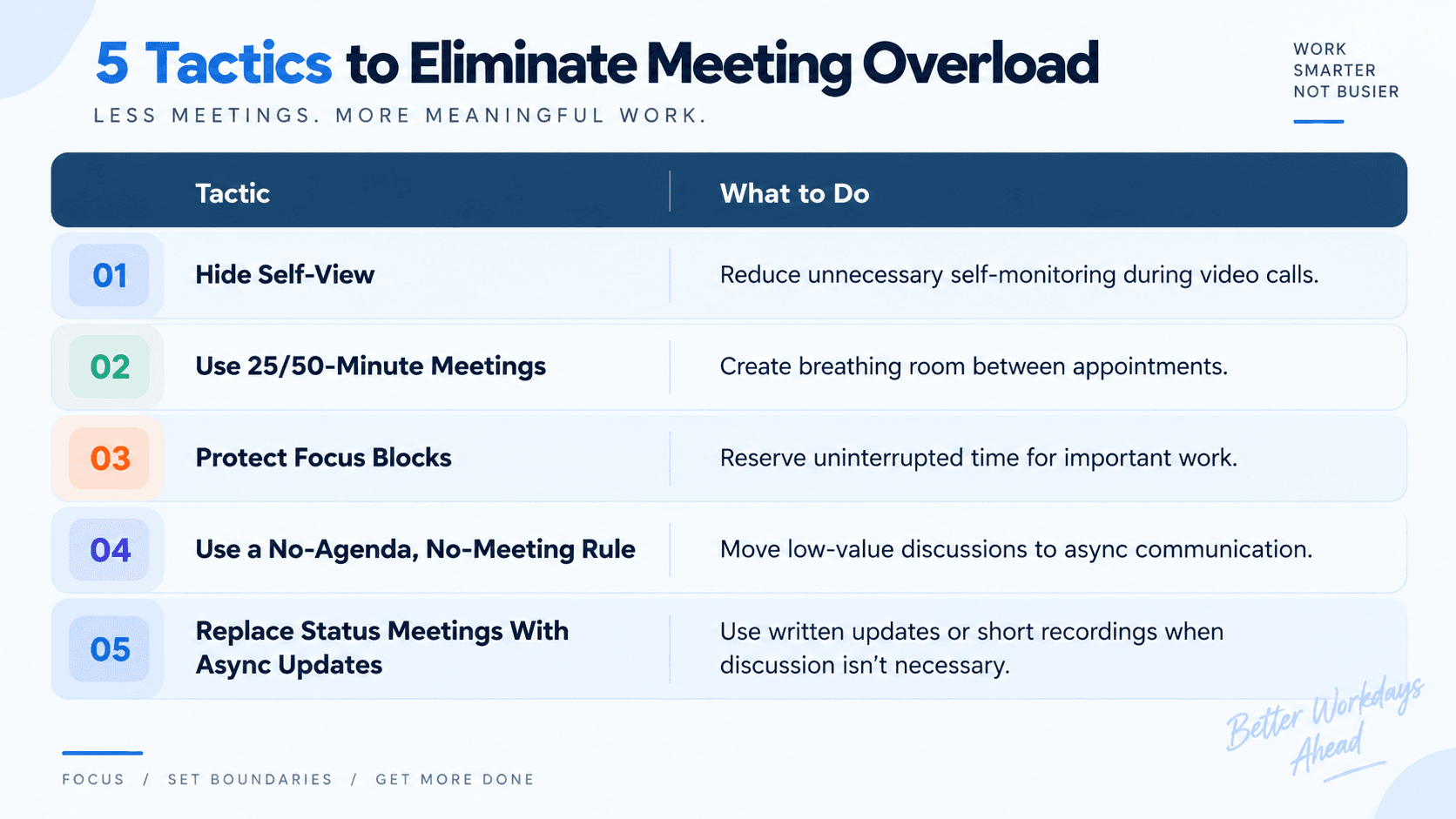
1. Hide Your Self-View
One of the simplest ways to reduce digital fatigue is to stop staring at yourself.
Think about a normal conversation.
You don't have a small mirror floating beside the other person's face while you're talking to them.
Video platforms can create exactly that experience by constantly displaying your own camera feed.
Stanford researchers have linked this self-focused attention with video-meeting fatigue, and studies have found that viewing your own video can contribute to appearance-related self-consciousness during calls.
Once your camera is framed correctly, use the platform's Hide Self View option when possible.
You're still visible to everyone else.
You simply stop monitoring yourself.
That small change can make video calls feel less like a performance.
Top Search Blogs
2. Switch From 30/60-Minute Meetings to 25/50
If your calendar is filled with meetings ending at 10:00, 10:30, 11:00, and 11:30, you're effectively scheduling yourself to work continuously.
A better approach is to make shorter meeting defaults:
30 minutes → 25 minutes
60 minutes → 50 minutes
Those extra five or ten minutes aren't wasted time.
They're a buffer.
Use them to:
Stand up
Get water
Check your notes
Write down action items
Prepare for the next conversation
Take a few steps away from the screen
You don't need to wait until lunch for your first real break.
Build small recovery periods into the calendar itself.
A simple example
Instead of:
9:00–9:30 Team meeting
9:30–10:00 Client meeting
10:00–11:00 Project meeting
Try:
9:00–9:25 Team meeting
9:30–9:55 Client meeting
10:05–10:55 Project meeting
You have created small gaps without removing any important work.
3. Protect Your Deep-Work Blocks
Some work requires concentration that meetings constantly interrupt.
Writing, coding, analysis, design, financial modelling, strategic planning, and complex problem-solving are difficult to perform when your attention is repeatedly pulled into notifications and calls.
Instead of hoping you'll “find time” for focused work, schedule it.
Try reserving two or three recurring focus blocks each week.
For example:
Tuesday: 9:00–12:00 — Focus Work
Thursday: 9:00–12:00 — Focus Work
During these periods:
Turn off non-essential notifications.
Avoid accepting routine meetings.
Close unnecessary browser tabs.
Put your communication status on focus mode.
Work on one important outcome.
The exact schedule depends on your role.
The principle is what matters:
Protect time for work that requires uninterrupted thinking.
If your role involves frequent collaboration, even a 60–90 minute protected block can make a significant difference.
4. Try the “No Agenda, No Meeting” Rule
Before accepting a meeting, ask one simple question:
What are we trying to accomplish?
If the answer is unclear, the meeting may not need to happen.
A useful meeting should generally have a purpose such as:
Making a decision
Solving a specific problem
Reviewing complex information
Resolving disagreement
Planning work that genuinely requires discussion
A meeting whose only purpose is “sharing updates” may be better handled asynchronously.
You can say:
“Could you share the key updates in the project channel? I'll review them and follow up if there's anything that needs discussion.”
That's not being uncooperative.
You're suggesting a more efficient communication method.
5. Replace Status Meetings With Async Updates
Not every update requires 30 people to sit in a video call.
A short written update can often communicate the same information more efficiently.
Try a simple structure:
Completed: Updated customer onboarding documentation.
In progress: Testing the new workflow.
Blocked: Waiting for API access from Engineering.
Next: Complete testing by Thursday.
That's enough for many routine updates.
For something that requires more explanation, a short screen recording can work well.
The important distinction is:
Information can often be asynchronous. Decisions usually benefit more from real-time discussion.
This is one of the most useful async communication boundaries you can establish.
How to Decline a Meeting Without Looking Unhelpful
Saying “no” to meetings can feel uncomfortable, especially if you're worried that colleagues will interpret it as a lack of collaboration.
You don't need to reject the person.
Reject the unnecessary meeting format.
Try:
“Thanks for including me. I reviewed the agenda, and I don't think I need to be in the discussion. I'll review the notes and action items afterward. If you need input from me on the technical dependency, feel free to tag me directly.”
Or:
“I have a focus block during that time to finish the current project. If there are specific decisions where my input is needed, please send them over and I'll respond before the meeting.”
The tone is important.
You're not saying:
“I don't want to attend.”
You're saying:
“Here's another way I can contribute.”
That difference makes the boundary much easier to communicate professionally.
How to Decide Whether a Meeting Is Worth Attending
Before clicking Accept, ask yourself five questions:
1. Is a decision being made?
If yes, your attendance may be valuable.
2. Am I responsible for that decision?
If no, consider whether you need to attend.
3. Do I have information that others need?
If yes, you may have a clear reason to participate.
4. Could I get the same information asynchronously?
If yes, consider skipping the meeting.
5. Will my absence create a real problem?
If no, you probably don't need to be there.
This doesn't mean declining every meeting.
It means becoming intentional about your calendar.
What If Your Company Has Too Many Meetings?
Sometimes you can't simply decline.
Your manager may expect attendance. Your clients may work on fixed schedules. Your role may genuinely require frequent collaboration.
In that situation, don't try to solve everything individually.
Talk to your manager about the overall pattern.
You could say:
“I'm noticing that recurring meetings are taking up most of my mornings, which is making it difficult to complete the analysis work that requires uninterrupted time. Could we review which meetings I need to attend and which updates could move async?”
This frames the issue around work quality and outcomes, not personal preference.
That's a much stronger business case.
Don't Confuse Meeting Fatigue With Burnout
Feeling tired after a long day of video calls doesn't automatically mean you're experiencing burnout.
Meeting overload is one possible source of work-related fatigue, but persistent exhaustion can have many causes.
If you're consistently struggling with energy, concentration, motivation, sleep, or your ability to function at work, don't assume that deleting a few meetings will solve everything.
Your wellbeing deserves more attention than simply optimizing your calendar.
Final Thought
The solution to calendar overload isn't necessarily better endurance.
It's a better calendar.
You don't need six hours of meetings to prove that you're productive. And you don't need to attend every conversation to demonstrate that you're collaborative.
Start small.
Hide your self-view.
Shorten recurring meetings.
Protect focus blocks.
Ask for agendas.
Move routine updates to asynchronous channels.
And when a meeting doesn't require your presence, learn to decline it professionally.
The goal isn't to have an empty calendar.
It's to have a calendar that leaves enough room to actually do your job.
Because being available all day isn't the same thing as being productive all day.